

Simple Product Backup
App For Your Shopify Store


Simple, transparent pricing
Back up your Shopify products automatically. No surprises.
Free
$0
Up to 10 products
- Daily scheduled backups
- 7-day backup retention
- CSV download
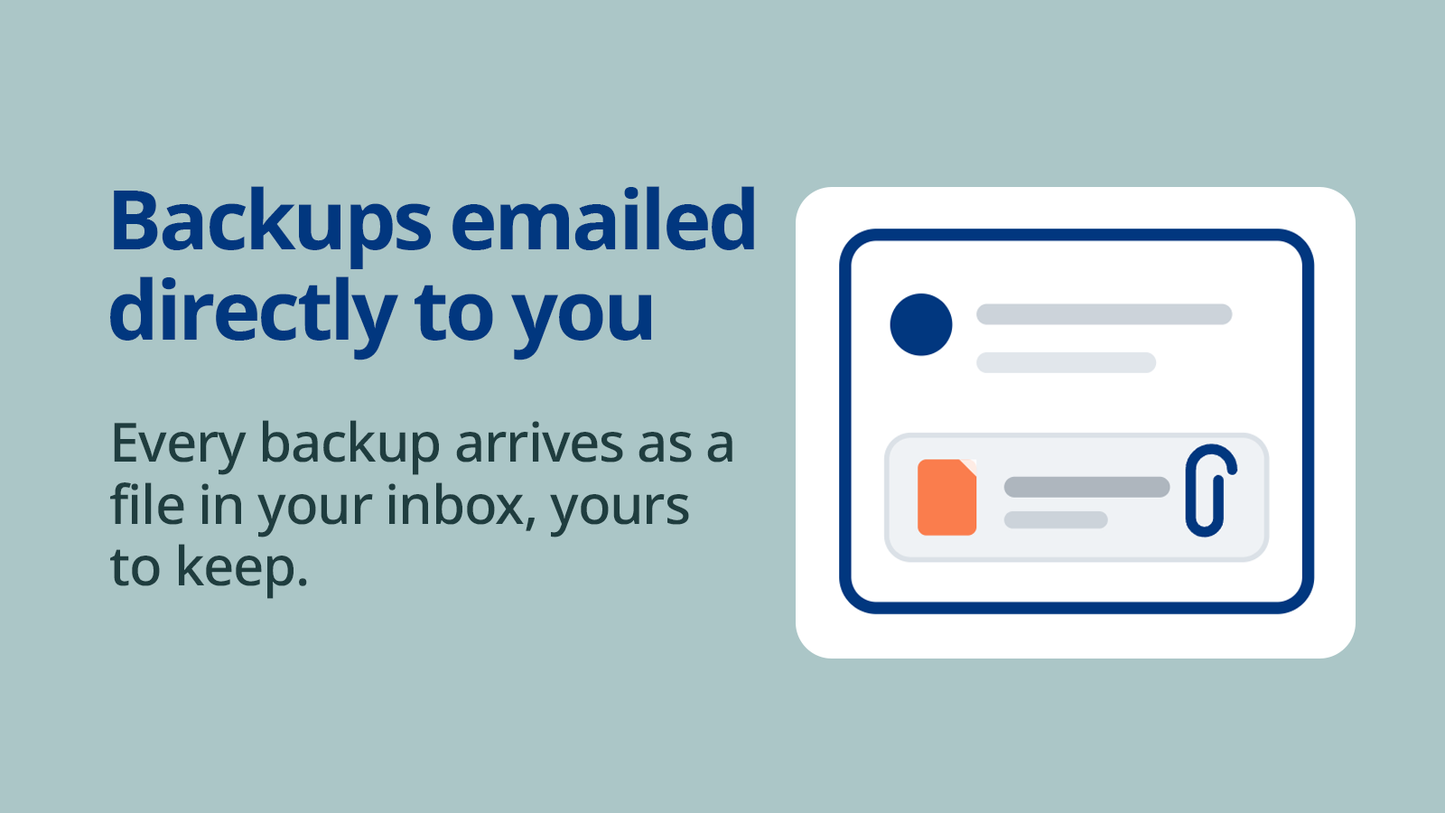
- Email delivery
- Manual backups
Basic
$4.99 /mo
14-day free trial
Up to 100 products
- Daily scheduled backups
- 7-day backup retention
- CSV download
- Email delivery
- Manual backups
Advanced
$9.99 /mo
14-day free trial
Up to 500 products
- Daily scheduled backups
- 7-day backup retention
- CSV download
- Email delivery
- Manual backups
Pro
$14.99 /mo
14-day free trial
Up to 1,000 products
- Daily scheduled backups
- 7-day backup retention
- CSV download
- Email delivery
- Manual backups
Enterprise
1,000+ products
Custom pricing for large catalogs. Get in touch and we'll find the right fit.
All plans are billed through Shopify. Cancel anytime.
Simple Product Backup
FAQ & Support — by Rum Reef
Backups
What does Simple Product Backup actually back up? ⌄
Your backup CSV includes all product data: titles, descriptions, variants, pricing, SKUs, inventory settings, images, SEO fields, tags, product type, vendor, published status, and all custom metafields defined in your store.
How do I run a manual backup? ⌄
From the app dashboard, click Run Backup Now. The backup runs in the background and appears in your history when complete.
Manual backups are available on all paid plans. The free plan uses scheduled backups only.
How often are automatic backups run? ⌄
All plans include scheduled automatic backups every day at 3:00 AM EST. Paid plans also include on-demand manual backups and email delivery.
How long are backups stored? ⌄
All plans retain backups for 7 days. To keep backups longer, download the CSV from your history page and store it locally.
What format is the backup file? ⌄
Backups are exported as CSV files formatted to match Shopify's standard product import format. You can import them directly back into Shopify without any conversion.
Plans & Billing
What's included in the free plan? ⌄
The free plan includes scheduled automatic backups, 7-day retention, and up to 10 products. To back up more products or receive email delivery, upgrade to a paid plan.
What do paid plans add? ⌄
All paid plans add: unlimited products (up to your plan limit), on-demand manual backups, and email delivery of backup files.
How do I upgrade or change my plan? ⌄
Go to the Plans page in the app and select your desired plan. Changes take effect immediately and are billed through your Shopify account.
What happens to my backups if I cancel? ⌄
We recommend downloading any backups you want to keep before uninstalling the app. Once uninstalled, stored backup files are no longer accessible through the app.
Restoring Products
How do I restore products from a backup? ⌄
It depends on how many products you need to recover.
Option 1 — recovering one or a few products Download your backup CSV and open it in Excel or Google Sheets. Find the product row(s) you need and use that data to manually recreate the product in Shopify. This is often faster and more precise when only a small number of products are affected.
Option 2 — restoring a large number of products Download your backup CSV from the History page, then in Shopify go to Products → Import and upload the file. If you are restoring products that were damaged (not deleted), Shopify will ask whether to overwrite existing products by handle. Choose Overwrite to replace the damaged versions with the backed-up data.
Option 1 — recovering one or a few products Download your backup CSV and open it in Excel or Google Sheets. Find the product row(s) you need and use that data to manually recreate the product in Shopify. This is often faster and more precise when only a small number of products are affected.
Option 2 — restoring a large number of products Download your backup CSV from the History page, then in Shopify go to Products → Import and upload the file. If you are restoring products that were damaged (not deleted), Shopify will ask whether to overwrite existing products by handle. Choose Overwrite to replace the damaged versions with the backed-up data.
Will a restore bring back everything exactly as it was? ⌄
For same-store restores, product data including all metafields is fully restored.
Images: Our app does not store copies of your product images. The backup file contains Shopify CDN URLs that point to your images. If those images still exist in your store, Shopify will restore them to the product during import. If a product was deleted and its images were also deleted, those URLs are no longer valid and the images will not restore.
Inventory quantities are not included in Shopify product exports and will need to be managed separately.
Images: Our app does not store copies of your product images. The backup file contains Shopify CDN URLs that point to your images. If those images still exist in your store, Shopify will restore them to the product during import. If a product was deleted and its images were also deleted, those URLs are no longer valid and the images will not restore.
Inventory quantities are not included in Shopify product exports and will need to be managed separately.
Metafields & Advanced Product Data
Are custom metafields included in the backup? Yes ⌄
Yes. All product metafields defined in your store are included as columns in the backup CSV.
Can I use a backup to import products into a different Shopify store? ⌄
Core product data (titles, descriptions, variants, pricing, images, SKUs, tags, SEO) should import successfully into any Shopify store.
Metafield data may not transfer fully to a different store. The following types have known import limitations: metaobject references and complex measurement types (dimension, weight, volume, rating).
Metafield data may not transfer fully to a different store. The following types have known import limitations: metaobject references and complex measurement types (dimension, weight, volume, rating).
Simple Product Backup is designed for same-store restores. Cross-store migration is not a supported use case.
This is a Shopify platform limitation, not something we control.
What are "linked options" and how are they handled? ⌄
Shopify allows variant options (like Size or Color) to be linked to metaobject definitions for richer filtering. The backup captures the resolved values from these linked options.
When restoring to the same store, all data is fully preserved. When importing to a different store, values import as standard plain options and the metaobject link needs to be reconnected manually.
When restoring to the same store, all data is fully preserved. When importing to a different store, values import as standard plain options and the metaobject link needs to be reconnected manually.
Troubleshooting
My backup failed. What should I do? ⌄
Common causes:
- Your plan limit has been reached — if your store has more products than your plan covers, the backup may be affected. Check your plan on the Plans page and upgrade if needed for full coverage.
- Permission error — go to Settings and click Reconnect to Shopify to refresh your app permissions
- Temporary Shopify API issue — try running a manual backup again after a few minutes
Some products failed with "Invalid CSV value for dimension". What does that mean? ⌄
This error occurs when importing to a different store that has dimension, weight, volume, or other measurement metafields. This does not affect same-store restores. If migrating to a new store, these metafield values will need to be re-entered manually after import.
Inventory quantities weren't restored after import. Is that a bug? ⌄
No. This is a Shopify platform limitation. Shopify's product CSV format does not include inventory quantities. Use Shopify's built-in inventory export under Products → Inventory to back up stock levels.
My images aren't showing after import. ⌄
Our app does not store copies of your images. The backup references them by their Shopify CDN URL. If the images still exist in your store, they will load correctly after import. If the original images were deleted along with the product, those URLs are no longer valid and the images cannot be restored from the backup file alone.